For most hobbyists, the best desktop robotic arm is the assembled Hiwonder xArm 1S: a metal arm you can teach by hand and replay straight out of the box. Choose the Elephant Robotics myCobot 280 JN for six axes, published precision figures and an NVIDIA Jetson Nano on board for Python, ROS and vision work, or the 4-DOF Waveshare RoArm-M2-S to point a camera, pen or small tool from a browser over Wi-Fi.
A desktop robotic arm sits or clamps on a desk and runs from a PC, a phone app or an onboard computer. Payloads are in grams, not kilograms, and that shapes everything you can do with one. This guide sticks to arms you program rather than build, so you skip the screwdriver evening and go straight to the software. Specs come from each manufacturer’s listing. We haven’t hands-on tested these arms, so we compare what’s published and say plainly where a number isn’t given.
Rather assemble one yourself? Our best robotic arm kits guide covers DIY and STEM kits.
As an Amazon Associate we earn from qualifying purchases. Prices and availability are accurate as shown on Amazon at the time of purchase.
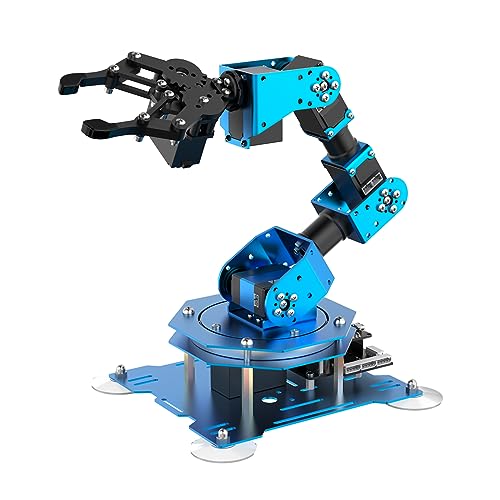
LewanSoul (Hiwonder) xArm 1S 6-DOF Metal Robotic Arm
For beginners and teachers who want results without code. Its full-metal frame and serial bus servos report their position, so you can pose it by hand, record and replay, drive it from a controller, app, PC or mouse, and move on to Arduino later.
Best for: Software-first builders who want a working 6-DOF arm fast

Elephant Robotics myCobot 280 JN (Jetson Nano)
For developers and students doing vision or machine-learning work. According to the manufacturer: six axes, 280 mm working radius, 250 g payload and ±0.5 mm repeatability, with a Jetson Nano built in.
Best for: Vision and machine-learning research on a compact arm
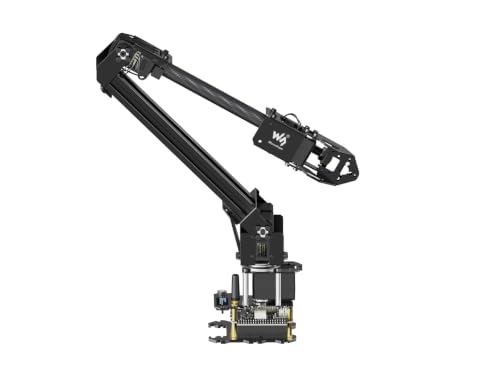
Waveshare RoArm-M2-S 4-DOF ESP32 Desktop Robotic Arm
For makers building camera rigs or drawing projects. An ESP32 runs a web app over Wi-Fi, with high-torque serial bus servos and an expansion plate for your own end-of-arm tool.
Best for: A wireless desk-top arm for tool or camera work
Hiwonder xArm 1S (assembled): best first pre-built arm
The Hiwonder (LewanSoul) xArm 1S is a full-metal arm sold as 6-DOF. Counted honestly, that’s five joints plus the gripper, which is normal for hobby arms (more below). Its servos are what make it a good first arm.
Teach by hand, then replay
The xArm 1S uses serial bus servos that send their position, voltage and temperature back to the controller. So you can work without code:
- Move the arm by hand and record the pose.
- Repeat for the next pose.
- Replay the sequence as an action group.
Classic PWM hobby servos can’t do this, because they don’t report where they are. Our encoders and position feedback guide explains why that matters.
Control options
- Without code: wireless controller, PC software, phone app and mouse.
- With code: a serial interface on the controller for Arduino secondary development. Our Arduino robotic arm code guide is the next step.
Kit or assembled: get the right one
Hiwonder sells the xArm 1S two ways: as a self-assembly kit and as a separate pre-assembled version. The kit has more than 100 screws and takes roughly three to four hours to build. The version we list is the assembled one. Looking elsewhere? Make sure the listing says assembled.
What it can’t do
- Give you precision numbers to design around. We have no confirmed payload, working radius or repeatability figures for it, so treat it as a servo-class arm for light objects. Hobby desktop arms realistically lift roughly 100–500 g.
- Orient the gripper freely. With five joints, it can’t hold the gripper at any angle everywhere in its reach.
Who it suits
Adult beginners, teachers and software-first makers who want a working metal arm on the desk without a build session.
Skip it if you need published repeatability, true six-axis motion or onboard vision compute.
Desktop robotic arms compared by published specs (a dash means there’s no figure we could confirm)
| Arm | DOF (as counted) | Joints / servos | Position feedback | Controller | Programming and control | Payload | Working radius | Repeatability | Arrives assembled |
|---|---|---|---|---|---|---|---|---|---|
| Hiwonder (LewanSoul) xArm 1S | 5 joints + gripper (sold as 6-DOF) | Serial bus servos, full-metal frame | Yes (position, voltage, temperature) | Hiwonder controller | Wireless controller, PC, app, mouse; Arduino via serial | — | — | — | Yes (assembled version) |
| Elephant Robotics myCobot 280 JN | 6 axes (per manufacturer) | — | — | NVIDIA Jetson Nano (on board) | Python, ROS, myBlockly | 250 g | 280 mm | ±0.5 mm | Yes |
| Waveshare RoArm-M2-S | 4 | High-torque serial bus servos | — | ESP32 | Web app over Wi-Fi; multiple wireless modes | 0.5 kg @ 0.5 m (per listing) | — | — | — |
Elephant Robotics myCobot 280 JN: best for vision and AI on the desk
The myCobot 280 JN has the most complete spec sheet here. According to Elephant Robotics, it is a six-axis arm with a 280 mm working radius, a 250 g payload and ±0.5 mm repeatability. It’s also the only arm on this page with a computer built in: an NVIDIA Jetson Nano, the kind of board you’d otherwise add separately for camera vision and machine learning.
What you’ll program it in
Elephant Robotics lists three options:
- myBlockly, the gentle on-ramp.
- Python and ROS, where vision pick-and-place and motion-planning projects live.
Our guides to controlling a robotic arm with Python and camera-vision pick-and-place walk through the typical workflow.
What it can’t do
- Lift much. The published payload is 250 g, and your gripper or tool counts against it. Think small blocks, pens and light parts.
- Be easy on day one. A Jetson Nano means Linux, and ROS has a steep learning curve. If you’ve never used a terminal, expect a slow start.
Who it suits
Developers, students doing vision or machine-learning projects, and labs that want a compact six-axis arm with published repeatability.
Skip it if you just want a no-code arm to pose and replay; the xArm 1S gets you moving faster. For the bigger picture on training arms, see robotic arm machine learning.
Waveshare RoArm-M2-S: best wireless 4-DOF desktop arm
The Waveshare RoArm-M2-S is a light 4-DOF arm built around an ESP32. According to the listing, the ESP32 offers several wireless control modes and a web application, so you drive the arm from a browser over Wi-Fi. Tutorials live on Waveshare’s wiki.
Specs per the listing
- High-torque serial bus servos
- Payload of 0.5 kg at 0.5 m
- Weight under 850 g
- An expansion plate for your own end-of-arm tooling
That plate is the main reason to pick it. Fit a camera, pen holder, small gripper or suction cup. Our end effector types guide covers the options.
Why 4 DOF can be the right choice
Four axes put a tool where you want it, but can’t tilt and twist it into every orientation. That’s enough for:
- pointing a camera
- drawing with a pen
- simple pick-and-place from above
The maths is also simpler when you write your own motion code. See 4 DOF vs 6 DOF for the trade-off, and our ESP32 robotic arm guide for how Wi-Fi servo control works.
What it can’t do
- Orient a gripper freely, as above.
- Give you a precision figure. No repeatability is published, so it’s not the arm for work with a tolerance to design around.
Who it suits
Makers building camera rigs, drawing projects or tool experiments, and web developers who’d rather work in a browser than an IDE.
Skip it if you need six axes or onboard AI compute. The listing calls it a desktop robot kit, so check what’s in the box and how much setup it needs.
How to choose a desktop robotic arm
Small-arm spec sheets use the same handful of terms. Here’s what each means in practice.
1. Count degrees of freedom honestly
The gripper is an end effector, not an axis. Most hobby arms sold as “6 DOF” are five joints plus a claw. A true six-axis arm adds a forearm roll, so it can set the tool’s orientation independently of its position.
- Four DOF is fine for positioning a tool.
- Six real axes let you approach an object from any angle.
More in degrees of freedom explained.
2. Read payload together with reach
Payload is the weight the arm can carry, gripper or tool included. It’s quoted at a stated reach: the RoArm-M2-S listing says 0.5 kg at 0.5 m. Hobby-class desktop arms realistically lift roughly 100–500 g and get less rigid the further they reach, so expect less at full extension.
Working radius is how far from the base the tool can get. Our reach and payload guide and the robot arm torque calculator help you check whether a job is realistic.
3. Repeatability is not accuracy
- Repeatability: how closely the arm returns to a point it has visited before.
- Accuracy: how close it gets to a new coordinate your code calculates.
Elephant Robotics publishes ±0.5 mm repeatability for the myCobot 280 JN. A taught pick-up spot or pen start point comes back within about half a millimetre either way. That says nothing about brand-new coordinates.
4. PWM servos vs serial bus servos
Classic PWM servos are open loop: the controller sends a target and gets nothing back. Serial bus servos daisy-chain on one data line and report position, load, voltage and temperature. That feedback makes teach-by-hand, record-and-replay and closed-loop control possible. On an arm you plan to program, it’s worth having. See servo motors for robotic arms for the wider picture.
5. Choose the controller you’ll actually program
This decides what you’ll spend your evenings in.
- Own controller and app (xArm 1S): controller, app, PC or mouse, then Arduino when you’re ready.
- ESP32 (RoArm-M2-S): Wi-Fi and a web app, for browser control and networked projects.
- Jetson Nano (myCobot 280 JN): Linux, Python and ROS, the route for vision and machine learning.
6. Plan for power, a computer and tools
Servo arms need a dedicated power supply. Running several servos from a Raspberry Pi or Arduino regulator causes brownouts, so check what supply each listing includes. You may also need:
- a computer, for any PC software
- a camera, for vision projects
- a different gripper or a suction cup, which may be a separate purchase
See how to power a robotic arm and our grippers and claws.
7. Desk space and safety
Clamp or weight the base so it can’t tip at full reach. Keep fingers, cables and drinks out of the working radius: small arms are light, but a servo at full torque still pinches.
myCobot vs Dobot vs xArm: the “name” desktop arms explained
Search for desktop arms and three brand names keep coming up. Here’s how they relate to the arms on this page.
myCobot 280
Elephant Robotics markets the myCobot 280 as a six-axis desktop arm with a 250 g payload, sold in several controller versions: M5Stack, Raspberry Pi, Arduino and the Jetson Nano version covered above. Pick the controller you already know or want to learn. The JN is the one aimed at on-arm vision and machine learning.
Dobot Magician and WLKATA Mirobot
Both are well-known desktop arms. We don’t carry them and haven’t confirmed their specs, so we don’t quote numbers here. Weighing one against a myCobot? Compare the same things our table does:
- an honest DOF count
- payload at a stated reach
- published repeatability
- the controller and the software you’ll actually use
- whether vision work needs a separate computer
uFactory xArm Lite 6 vs Hiwonder xArm 1S
The names collide, but these are different makers and different classes of machine. uFactory’s xArm line, including the Lite 6, is a step up toward small industrial arms. The Hiwonder (LewanSoul) xArm 1S is a hobby arm with serial bus servos.
When a cobot-class arm makes sense
Desktop hobby arms work in grams. If your project moves real workshop parts or holds tight tolerances all day, you’re shopping for a small industrial or collaborative arm. Our industrial robot arm guide explains how those differ.
Pre-built arm vs DIY kit vs 3D-printed LeRobot arm
Each route trades time against what you learn along the way.
| Pre-built arm | DIY kit | 3D-printed SO-101 (LeRobot) | |
|---|---|---|---|
| Time to first motion | Fastest | Hours of assembly (the xArm 1S kit takes roughly 3–4 hours) | Printing plus assembly, unless bought pre-assembled |
| What you learn | Software first | Mechanics and wiring | Printing, assembly and machine-learning workflows |
| Budget | Highest per axis | Lower per axis | Depends on printer and parts |
| Payload and precision | Published for some arms (myCobot 280 JN) | Varies by kit | Low |
Pre-built arm
The fastest way to start writing code. You skip the mechanical lessons that only come from assembling an arm yourself.
DIY kit
Costs less per degree of freedom and teaches how joints, servos and wiring fit together. Start with our best robotic arm kits or the step-by-step guide to building a robotic arm.
3D-printed LeRobot arm
The SO-101 is a 3D-printable six-axis arm with low payload and precision. Its draw is the LeRobot software ecosystem for imitation learning, where you teach the arm by demonstration. You print the parts yourself, though some vendors sell pre-assembled SO-101 kits.
See robotic arm machine learning for that workflow, and robotic arm STL files or our 3D-printed robotic arm build to print your own.
Frequently asked questions
What is a desktop robotic arm?
A small robot arm that sits or clamps on a desk and runs from a PC, a phone app or an onboard computer. Payloads are in grams, which sets it apart from industrial and collaborative arms.
How much can a desktop robot arm lift?
Elephant Robotics gives 250 g for the myCobot 280 JN, and the Waveshare RoArm-M2-S listing gives 0.5 kg at 0.5 m. Hobby-class arms realistically lift roughly 100–500 g, and the figure includes the gripper and drops as the arm reaches further out.
Is a 4-DOF arm enough, or do I need 6 DOF?
Four DOF is enough for pointing a camera, drawing with a pen or simple pick-and-place from above. You need six real axes to control the gripper's orientation freely. Most hobby arms sold as 6-DOF are actually five joints plus a gripper.
myCobot vs Dobot Magician: which is better for a hobbyist?
The myCobot 280 JN publishes a 250 g payload, 280 mm working radius and ±0.5 mm repeatability, with a Jetson Nano on board for vision and AI. Check a Dobot Magician's published payload, reach, repeatability and software against those figures, then choose by the software ecosystem you want to work in.
Do pre-built robotic arms need programming?
Not for basic use: the xArm 1S can be driven by wireless controller, app, PC or mouse, and taught by hand and replayed. When you want code, the xArm 1S offers Arduino development, the RoArm-M2-S has an ESP32 web app, and the myCobot 280 JN supports Python, ROS and myBlockly.
Can I use a desktop arm for computer vision or AI projects?
Yes. The myCobot 280 JN has an NVIDIA Jetson Nano built in for on-arm vision and machine-learning work. For imitation learning, the 3D-printable SO-101 with LeRobot software is another route, though you usually print the parts yourself.